Your Restaurant Booking Form Could Be Doing More Than Taking Reservations

Your restaurant booking form can help guests choose a dining area, select a menu and book extras before they arrive. It can also collect the details your team needs to prepare, without making every booking a lengthy questionnaire.
Imagine a guest booking an anniversary dinner. They want to sit outside, know whether the tasting menu is available and ask about a dietary requirement. If your form only asks for a name and a time, the rest still needs a phone call or an email.
Our Tableo booking widget brings those choices into the reservation. Guests choose their party size, date and time, then see the dining areas and products you've made available for that service. They add their details and review the booking, including any deposit or card-verification requirements, before confirming.
The useful question is what you want guests to decide before they reach the restaurant.
Show guests what they're choosing
If you offer both a terrace and an indoor dining room, explain the difference before guests book. The word “Outdoor” alone, tells them less than “Covered courtyard, with heaters in the cooler months”. Use descriptions that match the space you actually offer.
A photo helps too. Show the dining area itself, rather than another close-up of the food. A guest choosing where to spend an anniversary dinner wants to see where they'll be sitting.
In Tableo, you can add a description to each dining area, arrange the order guests see and control which areas appear in the booking widget. Dining-area descriptions are available on all plans; photos are available on Grow and above.
Guests choose an area, not a particular table. Tableo assigns the table automatically, and your team can change that assignment later in the Diary or Floor Map. Avoid wording that promises a particular window table when the guest has only booked the indoor dining room.
Tip: Go to Settings → Account Settings → Dining Areas to add photos and descriptions. Check the widget and Google visibility settings separately, and use “Hide unavailable dining areas in the widget” if you don't want guests to see areas they can't book.
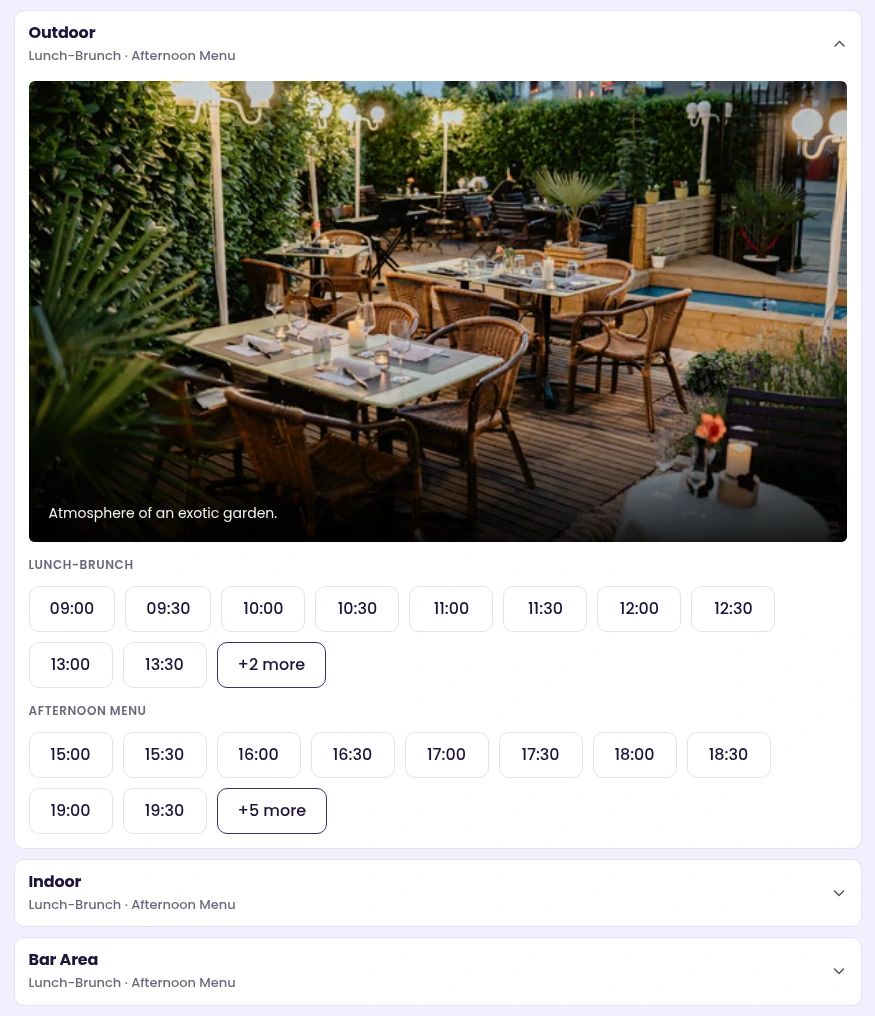
Guests can see a dining-area photo, description and available times before choosing where to sit. Demonstration widget.
Ask questions your team will act on
Before adding another field, decide who needs the answer and what they'll do with it.
Dietary requirements help your team prepare for a conversation with the guest. An anniversary tag gives the floor team useful context. A room number can help a hotel restaurant identify an in-house guest. Requiring a company name for an ordinary table for two is harder to justify.
Tableo lets you show fields for special occasions, birthdays, dietary restrictions, room numbers and company names. You can also add a custom field and change the helper text in the comments box. Bookings that contain selected allergies display an allergy icon in the Diary.
Keep the form short by default, making a question mandatory only when you genuinely can't prepare the booking without the answer. Finally, agree on who checks dietary information before service; collecting an allergy declaration doesn't replace confirming requirements with the guest and kitchen.For example, your comments prompt could say: “Please tell us about any access requirements or anything else we should know before your visit.” If you've enabled a dedicated dietary field, use that for dietary information rather than asking guests to repeat themselves.
Tip: Review the fields under Settings → Account Settings → Booking Settings. A custom field applies to bookings generally, so don't use it for a question that only makes sense for one special event.

Special occasions and dietary requirements in the guest-facing booking form. All guest details are blank.
Let guests book the menu, not just the table
Imagine you're serving a set menu on Friday evening. If guests only discover that after sitting down, your team has to explain an important part of the booking at the table.
Show the offer while they're deciding. Say what it includes, what it costs and whether everyone in the party needs to choose it. Where an optional extra makes sense, make the quantity clear: one item for the table is different from one per guest.
Tableo separates these offers into three types. A Menu is a fixed set menu selected instead of ordering from the à la carte menu at the table. An Experience is an event the whole party takes part in. Both are priced per guest and mandatory. An Add-on is an optional extra, priced per guest or per item, with a quantity guests can choose.
Products appear when guests book a linked service and are available on Grow and above. Link them carefully: a product applies to a whole service, not just part of one. If your offer only runs during an early sitting, create a dedicated service for that time slot instead of displaying it across the entire dinner service.
Tip: Enable Products in the Marketplace, then open Services & Events → Products & Experiences. Check the linked service hours and use “Single Select” when everyone in the booking must choose the same product.

A product offered during booking. This demonstration uses complimentary coffee; it does not show a paid menu or add-on price.
Give an event enough space to sell itself
A wine dinner needs more explanation than a normal dinner reservation. Guests need to know what's included, when it starts and what they're committing to before they book.
Give that information a page you can link to directly. If your social post promises a particular evening, its booking link should take guests to that evening rather than leave them searching through your usual availability.
Tableo events have their own bookable pages, with space for a description, schedule, what's included, photos, location and FAQs. You can create a one-off event or a repeating one, set its capacity and choose its payment arrangement. Event images are available on Grow and above.
Use the description to answer the questions your team would otherwise receive by phone. Does everyone arrive at the same time? What's included in the price? Are drinks included? What should a guest do about dietary requirements?
Tip: Start at Services & Events → Events → Create Event. Review the dates, service hours, capacity and payment arrangement before making the event visible, then use its dedicated booking link in your promotion.

The English New Year’s Eve event page, with its description and booking form. Demonstration venue.
Test the booking the way a guest would
Open your booking link on a phone and try to book a table. Can you tell the dining areas apart? Is the menu description clear? Do the questions make sense for this booking?
Check the summary too. Any deposit or card-verification requirement and your booking terms should be clear before guests confirm. Explain your cancellation conditions plainly rather than leaving your team to resolve misunderstandings at the door.
You can adjust the Tableo widget's colours and fonts, add your logo and preview it on desktop, tablet and mobile. Share the booking link wherever guests find you, or embed the form on your website.
Tip: Open Settings → Account Settings → Online Bookings. Use the device previews to check your design, then “Share & embed” to copy the booking link or website code.
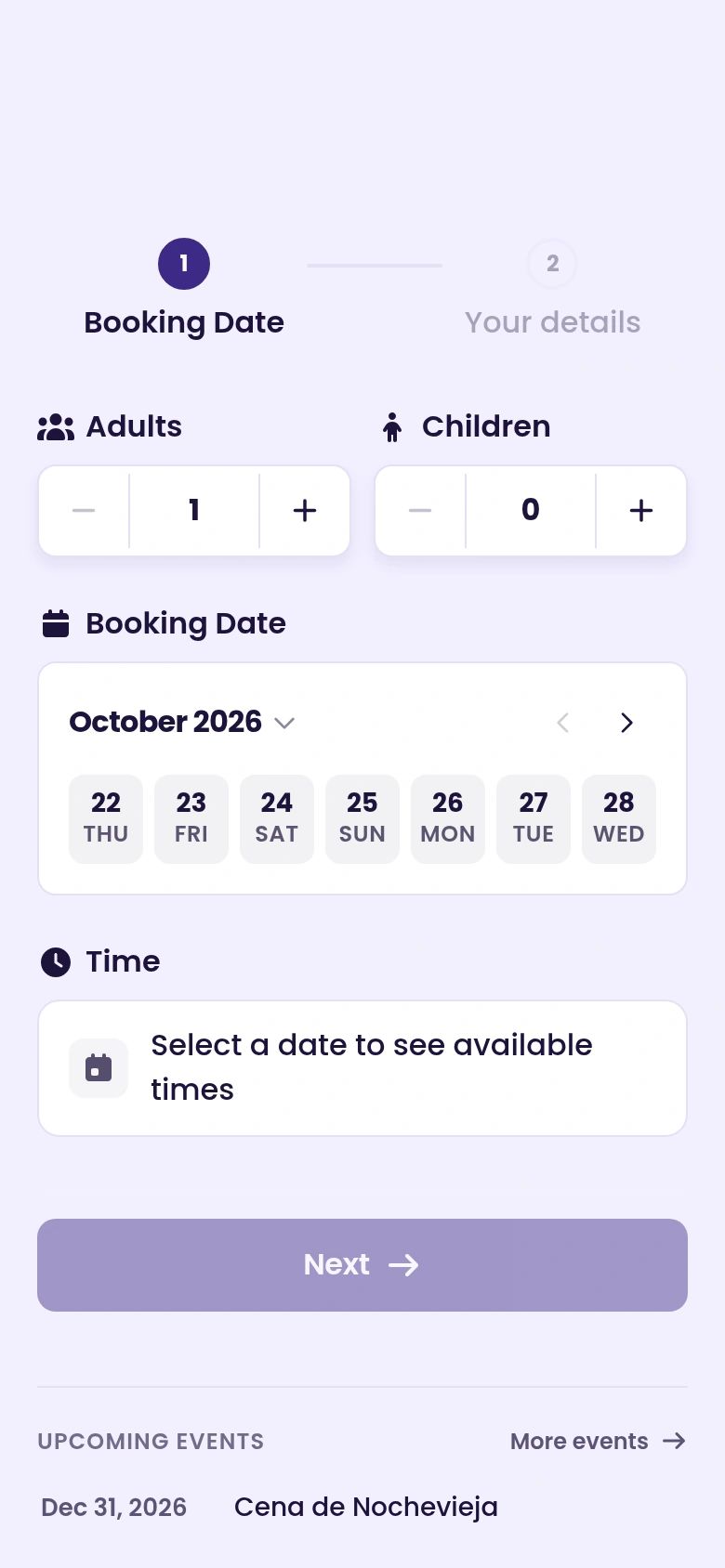
The guest-facing booking widget on a phone-sized screen.
Start with your busiest service. Check its bookable times and areas, remove any question nobody uses, and make sure the menu and booking terms say exactly what guests should expect. Then ask a colleague who didn't set it up to try the booking.
For setup instructions, see How to set up an Event in Tableo and Set up menus, experiences & add-ons.
-
Previous Post
Food Trends That Will Shape Your Restaurant In 2026


