Why your restaurant should be on Reserve with Google

If guests can find your restaurant on Google but can't book a table there, you're missing an opportunity to bring in new guests. Reserve with Google lets them book from Google Search and Maps, and with Tableo it's free on every plan, including Freemium.
Think about someone looking for dinner near their hotel, or checking where to take friends on Saturday. They haven't chosen your restaurant yet. They want to see the menu, check the location and find a table for the time they have in mind.
Give them a way to book while they're looking.
Reach guests who haven't booked with you before
Our Global Digital Booking Trends report, found that 73% of Reserve with Google bookings came from first-time customers. Restaurants activating the channel also recorded a median 32.3% increase in bookings.
While numbers vary from restaurant to restaurant. They do make a strong case for giving guests the option to book on Google, particularly people who haven't visited you before.
Your regulars already know your name and how to get a table. Someone choosing between restaurants nearby may not. Make that first booking straightforward.
Let guests reserve from Search and Maps
Reserve with Google adds a “Reserve a table” button to your restaurant's Google listing. Guests can check availability and make a reservation from Search or Maps without having to visit your website or call during service.
Bookings made through the channel arrive in your Tableo Diary, and guests receive the usual Tableo confirmation. Your team can see the reservation alongside the rest of the service rather than keeping a separate Google booking list.
For bookings that require payment or card details, there's an additional step on Tableo's secure payment page. We'll come to that below.
Start free, including on Freemium
We want to help restaurants grow, which is why Reserve with Google is free with Tableo on every plan. That includes Freemium. There isn't an extra Reserve with Google subscription or commission to pay.
Freemium includes up to 100 covers per month. That's a plan allowance, not a separate charge for Google bookings. If you go over the allowance, further Google bookings are held rather than lost; you'll need to upgrade to see them fully, or reject them.
Keep an eye on that allowance as bookings grow so your team can handle every reservation properly. Reserve with Google is available only in countries supported by Google.
Get the right Google account ready
Before connecting, check who has access to your restaurant's verified Google Business Profile. You'll need a Google account that is an owner or manager of that profile. If a former employee or an agency originally set it up, sort out access before you start.
Check that the restaurant name, address and phone number in Tableo match the Google listing, too. This is especially worth doing if you've moved, changed your number or have more than one location.
Tableo's self-service setup takes you through connecting your Google account, choosing and verifying the matching location, and activating Reserve with Google. You can complete the setup in minutes; the booking button normally appears within 24–48 hours, with that timing controlled by Google.
Tip: Go to Settings → Account Settings → Reserve With Google. Use an owner or manager account, select the correct restaurant location and follow the connection and activation steps. Keep the requested Business Profile permission selected on Google's consent screen.

Connect your Google Business Profile in Tableo.

Choose the Google listing that matches your restaurant, then verify the location.
Keep your deposit and cancellation rules clear
Opening another booking channel shouldn't mean forgetting the rules that protect your service. If you take a deposit for larger parties or require prepayment for a set menu, decide how those conditions apply to guests booking through Google.
On Grow and Expand, Tableo supports payment collection for Google bookings, including deposits, prepayments, card verification and no-show fees. With the Google payment redirect enabled, guests are sent to Tableo's secure payment page to complete the required payment or card-details step before the booking is confirmed.
Write the conditions clearly in your booking terms: what the guest needs to pay, when they can cancel and what happens if they don't arrive. Make sure the team understands the policy as well. A guest asking about a deposit at the door should get the same answer they saw when booking.
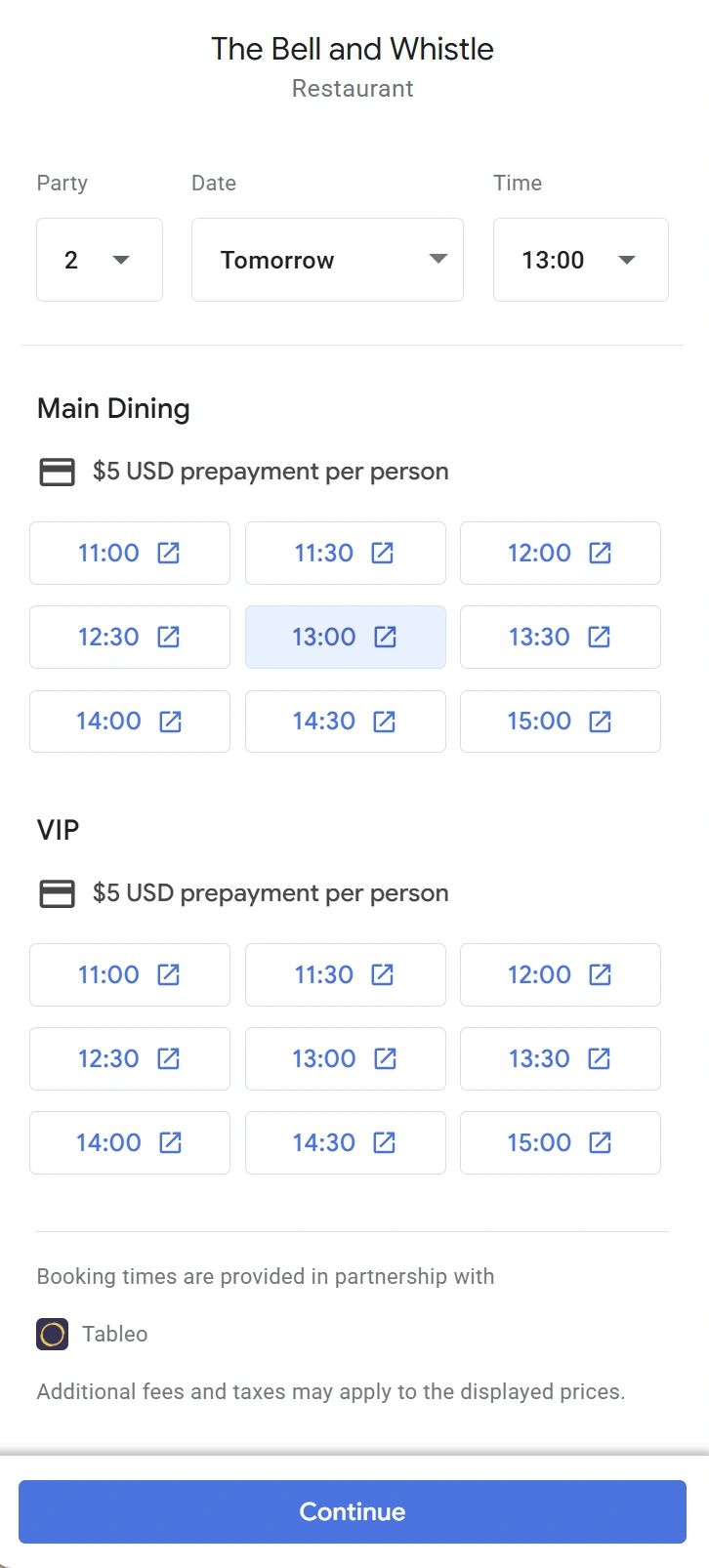
Google shows the prepayment amount alongside the available booking times. This example shows a USD 5 prepayment per person.
Check what guests see before they book
Once the button is live, look at the listing as a guest would. Is it the correct location? Are the opening hours accurate? Does the menu describe what you're currently serving?
Pay particular attention when your hours change. The time the restaurant closes and the last time you'll accept a table aren't necessarily the same. Check the hours guests see and the arrival times they can actually book, especially for Sunday lunch, split services and holiday closures.
Read recent reviews, too. If guests keep mentioning that they felt rushed before the next sitting, or didn't understand a deposit, check the information you're giving them before arrival. Bringing in first-time guests is worthwhile only if the restaurant is ready to welcome them properly.
More than Google bookings
Tableo can also help you grow your Google reviews, making your profile more attractive to future guests. After their visit, guests receive a review request and can leave their review directly on Google, where it’s seen by people deciding where to eat nearby.
Tip: Go to Reviews → Third Party Channels Settings and add your Google review link. You can add Micheline or Facebook links there too if you’d like to give guests the choice (available on paid plans).
Tableo also helps keep your Google profile in step with your service. If your Google hours don’t match your Tableo service hours, or Google lists you as closed, Tableo lets you know and you can update in one tap. Once you connect your Google Business Profile, changes to your service hours and closures in Tableo are sent to Google automatically, and you can read and reply to your Google reviews from your Tableo dashboard without switching between platforms.

Tableo flags a difference between Google opening hours and the hours saved in Tableo.
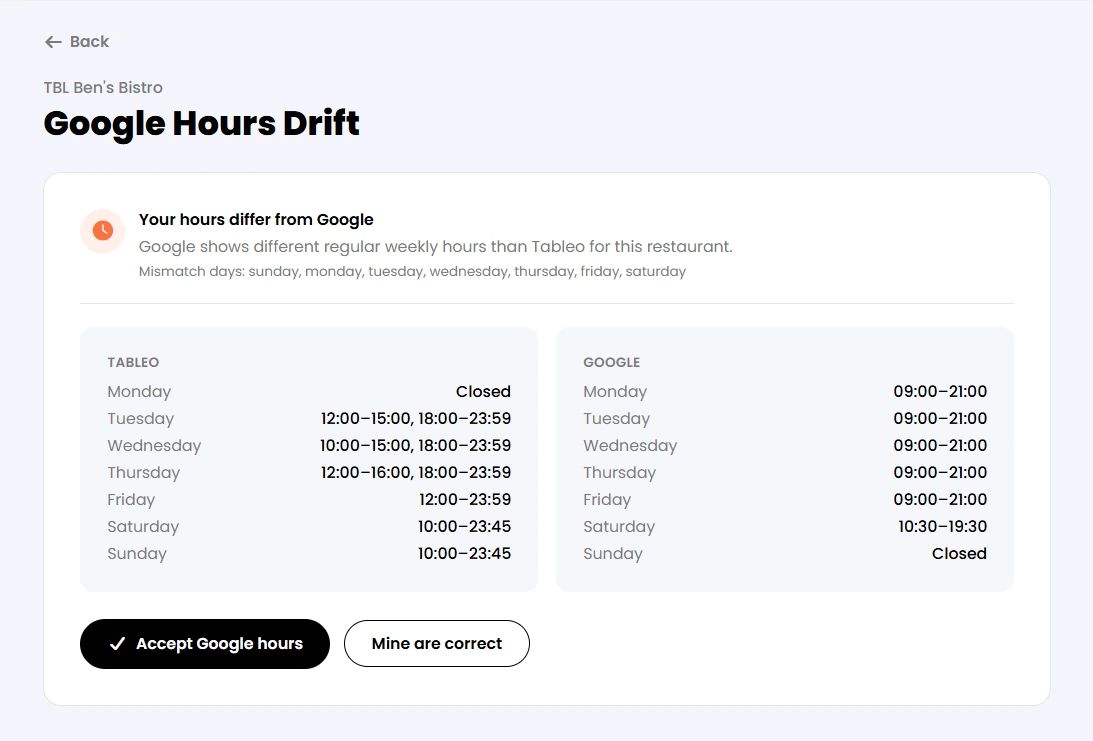
Compare the regular weekly hours and choose whether to accept Google’s hours or keep the Tableo hours.
Make your restaurant bookable on Google
Before your next service, check that you have access to the right verified Business Profile, match its details with Tableo, and complete the Reserve with Google connection. Once Google has added the button, review the listing and booking options from your phone.
Read our Global Digital Booking Trends report for the findings, or learn more about payment collection for Google bookings.
Don't have Tableo yet? Create an account for your restaurant in just 3 min. No card required and you can start Free.


